
MQBone help
How MQBone works, in plain words. The app is coming soon: there is no public download yet, and nothing is for sale on this website.
Anything this page doesn't answer: email support@mqb.au.
Connecting an adapter
MQBone talks to your car through a compatible Bluetooth OBD adapter. The adapter is separate hardware and is bought separately.
- iOS asks for Bluetooth permission the first time. If you decline it, the app can't find any adapter; you can change that in Settings for MQBone.
- Plug the adapter into the car's OBD port and switch the ignition on before you connect, so the controllers are awake.
- Connect to the adapter in the app, then add your vehicle. The adapter widget on MQBone's Home tab shows the current connection state.
- The app has built-in support for ST and MQBau adapters. A generic Bluetooth OBD adapter is not universally compatible. Send us the exact model and firmware version and we'll confirm it — see compatibility.
The engine and gearbox controller families the app programs are listed in compatibility on the home page.
If it won't connect
Work through these in order — most failed connections are one of the first three.
- Bluetooth is on, and MQBone is allowed to use it. Check Bluetooth in Control Centre or Settings, then Settings → MQBone → Bluetooth. If you declined the permission the first time, the app will find nothing at all.
- Nothing else is holding the adapter. A Bluetooth OBD adapter generally accepts one connection at a time. Close any other OBD or diagnostic app, and if you previously paired the adapter in iOS Settings for another app, disconnect it there.
- The adapter has power and the car is awake. The adapter is powered by the OBD port, so it needs to be fully seated, and the ignition should be on so the controllers answer.
- Check the adapter model and firmware version. The app has built-in support for ST and MQBau adapters; a generic Bluetooth OBD adapter isn't universally compatible, and some firmware versions behave differently. Have both to hand when you contact us.
- Restart the pieces. Unplug the adapter for a few seconds, then reopen the app.
Still nothing? Email support@mqb.au with your adapter model and firmware, the vehicle, and your iOS version.
If the app offers an adapter firmware update
Follow the app's own prompt — it knows which firmware it's offering and for which adapter. The one rule: only do it while nothing critical is running. If a recording, a flash, an unlock or a recovery operation is in progress, let it finish first and update afterwards. Never interrupt a programming operation to update an adapter.
Your first recording
A recording writes a datalog as a CSV file on your device. Recording new logs needs that vehicle's VIN activation; viewing logs you already have does not.
Starting by hand or on a trigger
You can start and stop a recording yourself, or set a trigger so the app starts recording when a condition is met. Two settings shape what a triggered recording contains:
- Lead-in
- Keeps a short period of data from just before the trigger fired, so the start of a pull isn't cut off.
- End delay
- Keeps recording for a set time after the trigger condition stops being true, instead of ending the moment it clears.
What needs an internet connection
Starting a new recording needs a connection, because the app checks your account and that vehicle's activation first. Once a recording has started it keeps going if the connection drops, as long as the adapter stays connected. Live gauges and opening saved logs don't need that check.
Sample rate
MQBone doesn't promise a rate in hertz. What you get depends on the vehicle, the controller, how many PIDs you have selected and the adapter. Where a controller supports it, the app can use Mode 22 or HSL rather than generic OBD requests.
Importing, viewing and sharing logs
Logs are ordinary CSV files, so they work with the tools you already use.
- Import. Use Import in the app's Log Viewer. That opens the iOS file picker, so you can pick a CSV from Files — on the device, in iCloud Drive, or in another storage provider you have set up in Files. Start from inside MQBone rather than from the share sheet in another app.
- Share. Use the app's Share action on a log to send it out through the iOS share sheet — to your tuner, to a Mac, or into any app that accepts a file.
- Size limit. The in-app log viewer opens files up to 50 MiB. For anything larger, either Share it to a computer and open it there, or split a copy into smaller files — keep the original, and give each piece the same header row as the first line, or the columns won't be read.
- Graphs. Choose which PIDs are drawn, and move a cursor along the graph to read every plotted value at one point in the log.
- On the website. Signed in, Datalogs opens a CSV in the browser tab itself — up to 10 MiB, read in the tab, not uploaded and not stored. Up to eight channels are drawn at once, either normalised to 0–100% of each channel's range across the whole log — so a channel that never changes sits on the 50% line — or one chart per channel in its own units.
- Maps. If a log contains location data, the app can show the route on a map. A log recorded without location data simply has no map.
Location is optional. The app only records position if you allow location access and the log is set up to include it.
Saved vehicle setups
Each vehicle is saved against its VIN, and its setup belongs to that vehicle: the gauges and PIDs you chose, the units you prefer (metric or imperial), any PID definitions you imported from a CSV, and its scan history. Switch cars and the right setup comes back.
These setups, your logs and your scan history are stored on the device. They aren't synced to MQBau and aren't restored by signing in somewhere else — see a new phone, or a reinstall.
Signing in on the website
Use Sign in with Apple at the top of mqbone.app, with the Apple Account you use in the app. A website session lasts up to 15 minutes, then you sign in again. Signed in, the site shows your MQBone account instead of the marketing pages, with Home, Garage, Activations and Datalogs for reading a CSV log in the browser. Help, release notes, compatibility, About MQBone, contact and the legal pages open inside the account as well, so nothing you have open is lost by reading them.
The website garage
You can save vehicles to a garage that belongs to your website account: a VIN and a name for the car, up to 25 vehicles. Saving the same VIN again just updates its name.
- It's separate from the app's garage. The vehicles, setups and logs in the app stay on your device. Saving a vehicle on the website doesn't add it to the app, and there is no sync in either direction.
- Removing is website-only. Removing a vehicle here deletes that website record. It doesn't touch the vehicle in the app, and it doesn't remove or change any activation on that VIN.
- Saving is not activating. Adding a VIN here gives you nothing to record or flash with. Activations are bought in the app.
- Vehicle numbers are shown partly hidden; the full VIN appears only in the field when you're editing that vehicle.
Deleting your MQBone account in the app doesn't remove these website garage entries. Remove them here first, or email support@mqb.au afterwards and we'll remove them — see deleting your account.
Activations shown on the website
Activations lists the activations on your account, with the vehicle number partly hidden, and when it last checked. There's no checkout here: website payments are switched off, and purchases and Restore Purchases stay in the app. If the check can't reach the service, press Check again in a moment — your account is unchanged either way.
Reading a log in the browser
The Datalogs section of your MQBone account opens a CSV log so you can look at it without the app: search the channels in the file, draw up to eight of them together, and move one cursor along the graph to read every drawn channel at the same sample.
- Two views. Normalised overlays the chosen channels on a single 0–100% axis, each scaled to its own lowest and highest value in the whole log, so shapes can be compared even when the units can't. Native units gives each channel its own chart and its own axis in its own units. Both keep the same scale when you zoom, and the readings under the graph are always in the channel's own units.
- Cursor and statistics. The cursor reads the recorded sample, not the drawn line, and the minimum, maximum and mean beside each value are for the whole log. The Sample position slider, and the arrow keys on it, step through the samples.
- Zoom. Drag across a chart to zoom into that span, or type a start and end time in seconds. Zoom in, Pan left, Pan right and Reset zoom do the same without a pointer.
- The file is not uploaded. It's read inside the browser tab, nothing is sent to us and nothing is stored in your browser. Clear discards it, and so does closing the tab or signing out.
- Size limit here is 10 MiB, which is smaller than the app's 50 MiB viewer. Larger logs are for the app, or a computer.
- Reading a log costs nothing and doesn't need an activation, exactly as in the app.
- Load sample log builds a sample log in the browser so you can see how the viewer works. It isn't from a vehicle.
Purchases that don't finish straight away
Two different things can leave an activation looking incomplete, and they need different actions. The activation sheet in the app tells you which one you're in.
1. Apple hasn't finished the payment yet
An in-app purchase can be left waiting — for example when Ask to Buy needs a family organiser's approval, or your bank asks for extra verification. That isn't a failure, and it isn't something you can push through from the app.
- The outcome is Apple's: a pending purchase may be approved, or it may be declined or expire. We can't promise that one always completes.
- If Apple does approve it, Apple tells the app and the app finishes the activation then. You don't need to buy a second time while it's waiting.
- If it's an Ask to Buy request, the family organiser has to approve it on their own device.
2. Apple took the payment but we haven't recorded it yet
Apple can complete a purchase while the app still has to hand it to the MQBau backend so the VIN activation is granted. If that hand-off doesn't get through — patchy signal, the phone going to sleep mid-step, our service being briefly unreachable — the activation sheet shows Retry Confirmation.
- Be signed in with the same Apple Account you bought with. A different account has a different set of activations.
- Keep a working internet connection, then tap Retry Confirmation. It sends the same purchase again; it doesn't charge you again.
- If the retry isn't offered, or has stopped being offered, use Restore Purchases in the app instead. That re-checks what Apple holds for your Apple Account.
- If neither works, email us before paying a second time: support@mqb.au with the email address you purchased with and the VIN's vehicle. Buying again may just leave you with two charges to sort out.
Please don't send card numbers or other payment details — we don't need them and can't use them.
What this website can and can't do
There is no restore button and no checkout here; website payments are switched off. Signed in, the site shows the activations already on your account and lets you keep your own website garage — neither grants, changes nor restores a purchase.
A new phone, or a reinstall
Two different things are involved, and only one of them follows your account.
- Activations follow your account
- Sign in with the same Apple Account and use Restore Purchases in the app. Activations are linked to your MQBone account, not to a particular device.
- Your data stays on the device
- Saved vehicles, setups, scan history and CSV logs live on that phone or iPad. Restoring purchases does not bring them back.
So before you move phones, wipe a device or delete the app, share or copy out the logs you want to keep.
Preparing to flash safely
Flashing rewrites software inside a controller. If it is interrupted the vehicle can be left undriveable until the controller is recovered, which may mean a tow and a workshop. Plan for the car being off the road for a while, and don't start an operation you'd have no way back from — check recovery first.
- Power. The vehicle needs a stable, properly regulated supply for the whole operation. Follow the guidance for your vehicle and adapter on what to use — not every battery charger is suitable for programming, and some maintenance chargers are explicitly not. If you're unsure what your car needs, ask before you start.
- Ignition. Switch the ignition on with the engine off, unless the app tells you otherwise, and leave it alone until the operation finishes.
- Stay connected. Keep the phone or iPad next to the adapter, don't let it sleep or run out of battery, and don't close the app or start a call that interrupts it.
- Files. You use your own compatible calibration files, and arrange tuning services separately. Use a file made for that exact controller, and keep your original.
- Internet. Preparing a flash or unlock needs a connection so the app can check your account and the VIN's activation.
- Don't update mid-operation. If the app offers an adapter firmware update while a recording, flash, unlock or recovery is running, finish that first.
Have a way back
Before you begin, check compatibility for your controller family and know what you'd do if the operation fails. Note that DQ381 G1 is calibration only — full flash and recovery aren't offered for it, so a failed operation on that gearbox controller can't be recovered by the app.
The app runs its own compatibility checks and unlock steps before an operation and will refuse combinations it doesn't support. Those checks aren't a substitute for confirming your setup with us first.
What the app does and doesn't reach
- MQBone works with the engine and gearbox controllers it has support for. It isn't a whole-car coding tool and doesn't code every module in the vehicle.
- It reads and clears fault codes, shows controller information and keeps a scan history, and runs the adaptations it supports for your controllers — not every adaptation a dealer tool can reach.
- Your exact controller, its software version and your adapter decide what's available, so MQBau confirms each setup by email — see compatibility.
- There is no cloud sync and no server backup of your vehicles, setups or logs.
- Bench protocols (MED17, MED9 and DSG through Scanmatik) are in development. There is no macOS release and they can't be bought.
Languages
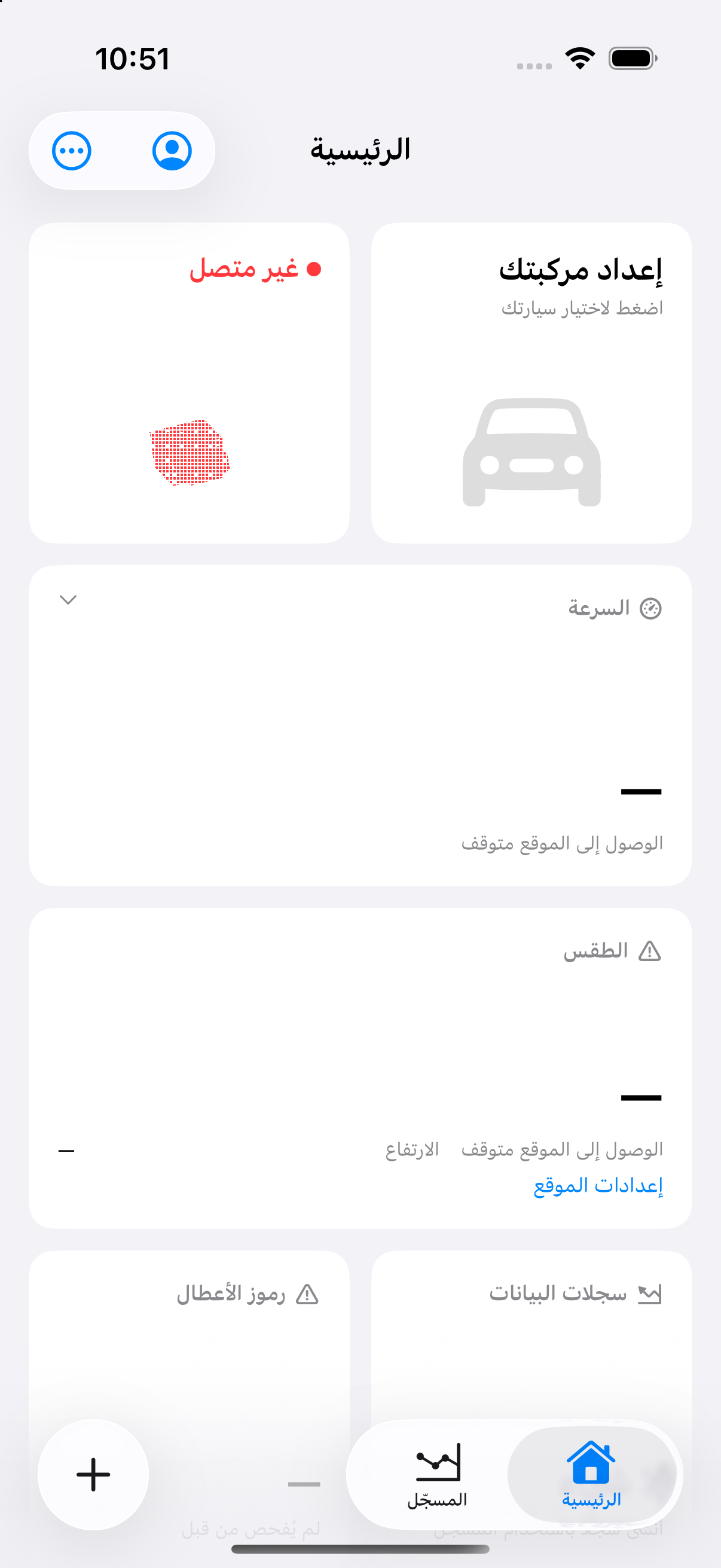
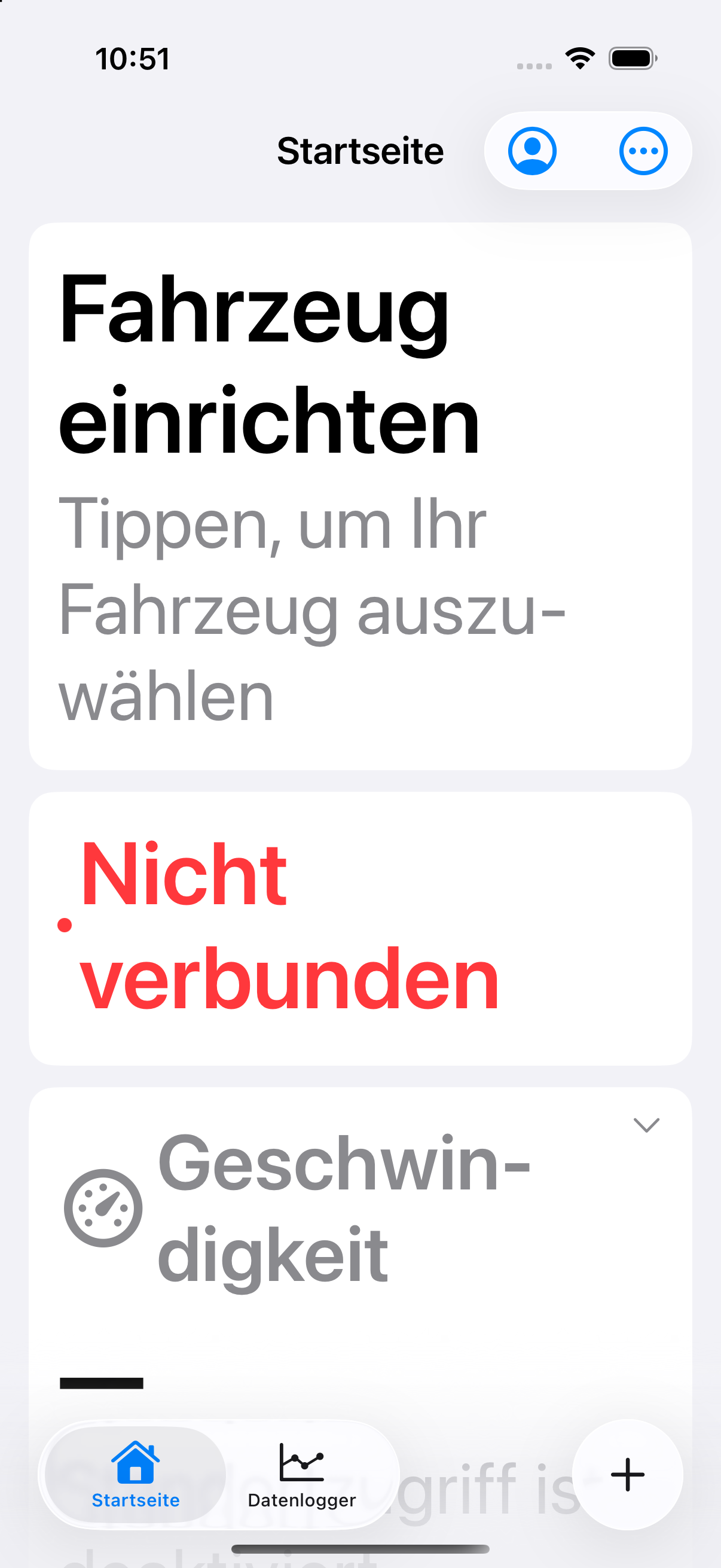
The app's interface is built with 27 localisations. It also follows your text size setting, so larger type stays readable.
The languages included are:
- English
- German
- French
- Spanish
- Italian
- Portuguese (Brazil)
- Portuguese (Portugal)
- Dutch
- Polish
- Czech
- Swedish
- Danish
- Finnish
- Norwegian Bokmål
- Turkish
- Russian
- Ukrainian
- Arabic
- Hebrew
- Hindi
- Indonesian
- Thai
- Vietnamese
- Japanese
- Korean
- Simplified Chinese
- Traditional Chinese
Choosing the language
MQBone follows the language your device is set to. If your system language isn't one of the 27, iOS picks the closest match from your preferred language order, and falls back to English.
You can also set a language for MQBone alone, without changing the rest of your device. In the app, General settings opens MQBone's own iOS settings, where you can choose the app's language.
Arabic and Hebrew are laid out right to left, with the whole interface mirrored rather than just the text.
Wording is still being refined, and a phrase can fall back to English where a string is newer than its translation. If a translation reads badly to you, tell us at support@mqb.au.
This website is published in English only for now.
Deleting your account
You can ask the app to delete your MQBone account. Read this first, because it isn't reversible from your side.
- The app asks you to sign in with Apple again first, so that someone holding an unlocked phone can't delete the account.
- Deleting the account signs you out everywhere — your app and website sessions are revoked — and removes the VIN activations held on that account.
- It does not refund anything. Refund requests for charges made through Apple go to Apple: reportaproblem.apple.com.
- It does not move your purchases to a new account. Creating another account, or signing in with a different Apple Account, does not automatically re-grant activations you had before. If you need this sorted out, email us before deleting.
- It does not restore or preserve anything on your device. Vehicles, setups, scan history and CSV logs are removed by deleting the app or its data, not by deleting the account — and deleting the account can't bring them back. Copy out the logs you want to keep first.
- Your website garage entries are separate records and aren't removed by deleting the account. Remove them on the website first if you want them gone, or email us afterwards and we'll remove them.
- Records we're required to keep for legal, accounting or security reasons are retained — the privacy notice explains how long information is kept.
Getting help
Email support@mqb.au — car and adapter questions, activation questions and purchase help all go to the same address, and a person answers.
There's also a community Discord for talking to other users. It's run as a community, so account and order help should go to the email address above.